Official Guide / First Connection
Shadowrocket Setup Guide
Import an Existing Subscription, Set Global Routing, and Verify the Connection
Follow five steps to set up Shadowrocket on iPhone or iPad. Gather your connection details, choose a routing mode, then check that requests are handled as expected once connected.
Add Server: Add a Server or Subscription
Open Shadowrocket and go to Home. First identify what kind of details you have: a subscription link that updates a server list, or individual server details containing a protocol, address, port, and authentication information. These go in different places. Don’t paste an entire subscription link into Host or use a server address as a Subscribe link.
Have a subscription link? Use Subscribe
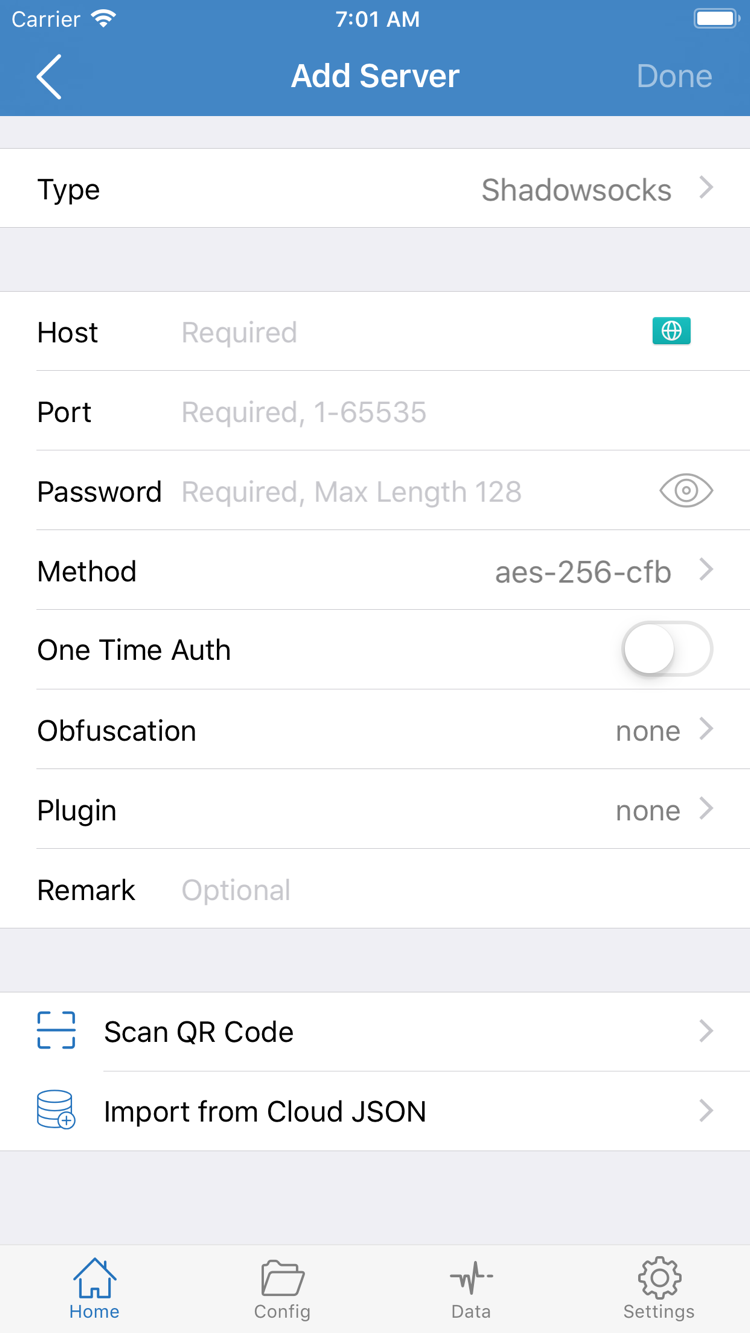
From Home, tap Add Server or the corresponding add control. On the add screen, tap Type and choose Subscribe. Enter your full subscription link in the URL field, then save. Check that no spaces, line breaks, or explanatory text were copied at the beginning or end. Query parameters are part of the link and should not be removed or changed. You can add a note to identify the subscription; it won’t affect the connection details.
After saving and the subscription finishes updating, return to Home and check whether server entries appear under SERVER. The subscription name may differ from the server names, so expand the list or inspect its entries before selecting one. If you see the subscription record but no selectable servers, check that the update completed, the link is valid, and your current network can reach the subscription address. Re-adding the same subscription usually won’t fix an issue with its source address.
Have individual server details? Fill in the fields for the selected Type
Open Add Server and choose the Type that matches your details. Required fields vary by protocol: Host, Port, Password, and Method in the screenshot are specific to the example type and won’t apply to every protocol. Enter the server hostname or address in Host and the supplied port in Port. Check authentication, encryption, and TLS fields against your original details, including capitalization and special characters.
If you have a QR code for the server, use Scan QR Code to read it, then review the fields. Import from Cloud JSON is only for existing data in the supported format; don’t enter an arbitrary web address there. Save, return to Home, and select the server you want to use. The name is just a note; selecting the entry determines the destination for subsequent proxy requests. Once you have a clearly identified server entry with complete details, choose how to route requests in the next step.
Subscription links may contain access credentials, so treat them like passwords. Don’t share the full link, QR code, or screenshots containing authentication fields publicly. Updating a subscription refreshes the server list; it does not necessarily install rules for traffic routing. Check the Config selection separately.
Global Routing: Choose Rules and a Mode
Once the server appears on Home, open Global Routing. This controls how requests are handled; it isn’t where you enter server details. The three basic modes are Config, Proxy, and Direct. Before you begin, be clear about your goal: test whether the selected server works, or use an existing configuration to route traffic. Each goal calls for different checks.
Config: Route traffic using the active configuration
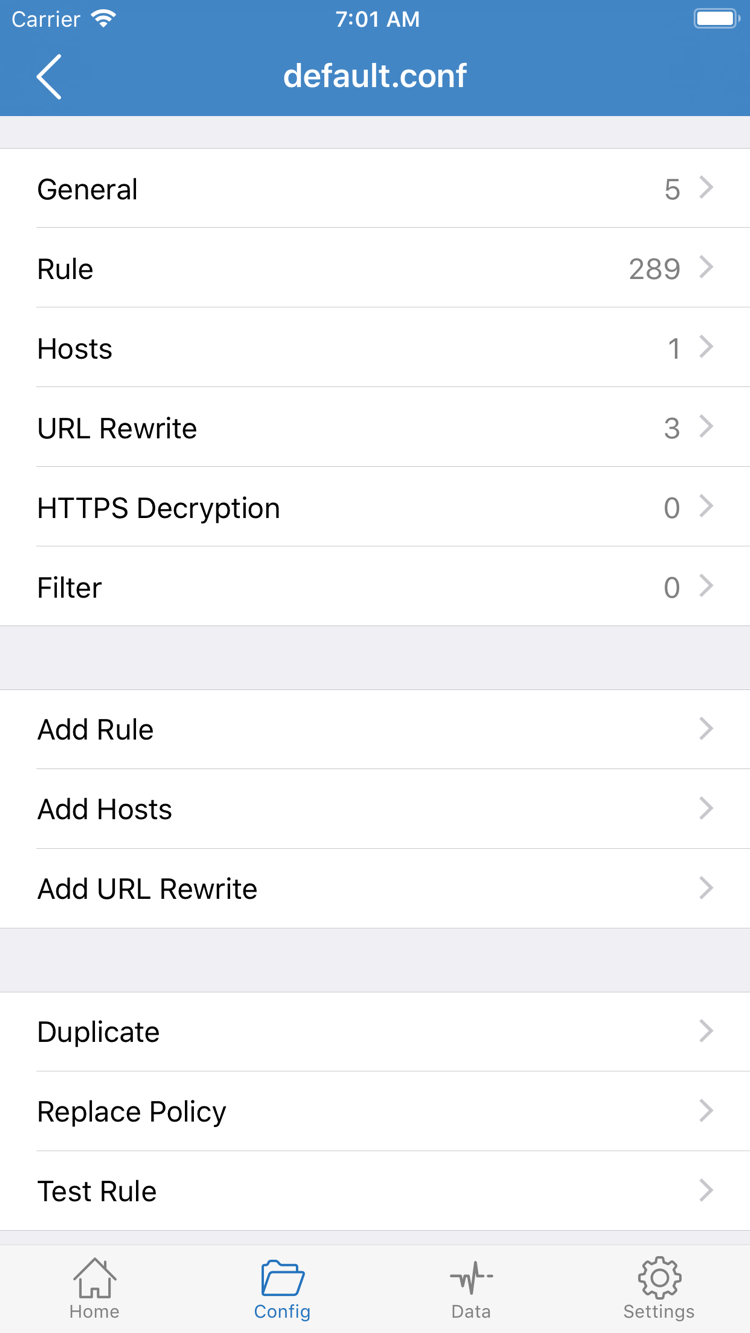
Choose Config for rules-based routing. Open Config, confirm that the configuration file you intend to use is selected, and review its rules. A subscription provides servers; a configuration file defines how requests are handled. They aren’t interchangeable. Importing a Subscribe link and choosing Config does not ensure the rules match your needs.
In the official screenshot, the configuration editor is organized into sections such as General, Rule, Hosts, URL Rewrite, and HTTPS Decryption. To get started, focus on Rule and the policies it references; you don’t need to enable every other section to connect. Add Rule adds a rule. If you’re using an existing configuration, review the rule order and final handling behavior before making changes. In particular, don’t change HTTPS Decryption casually to troubleshoot a routine connection issue.
DOMAIN-SUFFIX,example.com,PROXY
GEOIP,CN,DIRECT
FINAL,PROXY
This is a short example to help explain how rules work, not a complete configuration to copy and paste. The DOMAIN-SUFFIX example sends matching domains to PROXY; the GEOIP example sends matching addresses to DIRECT; FINAL handles requests that didn’t match earlier rules. Rules are generally evaluated in order, so a broad rule near the top may prevent later, more specific rules from matching. Actual behavior also depends on the full configuration and its policy definitions.
Proxy and Direct: Set a clear testing goal
Proxy sends requests handled by this mode through the selected proxy server. It can help distinguish a server that is unavailable from routing rules that aren’t working as expected. Direct connects without using the proxy, so it won’t test the proxy route. If you temporarily switch to Proxy for comparison, return to Config if your goal is rules-based routing, then verify the rules. Don’t treat a successful connectivity test as a finished configuration.
For this step, confirm that the selected mode, configuration, and server are consistent. For configuration sources, complex rules, and how to revert changes, see Troubleshooting. For App Store purchases and account questions, see the App Store Guide; there’s no need to handle these during your first connection.
Home: Connect and Allow VPN Access
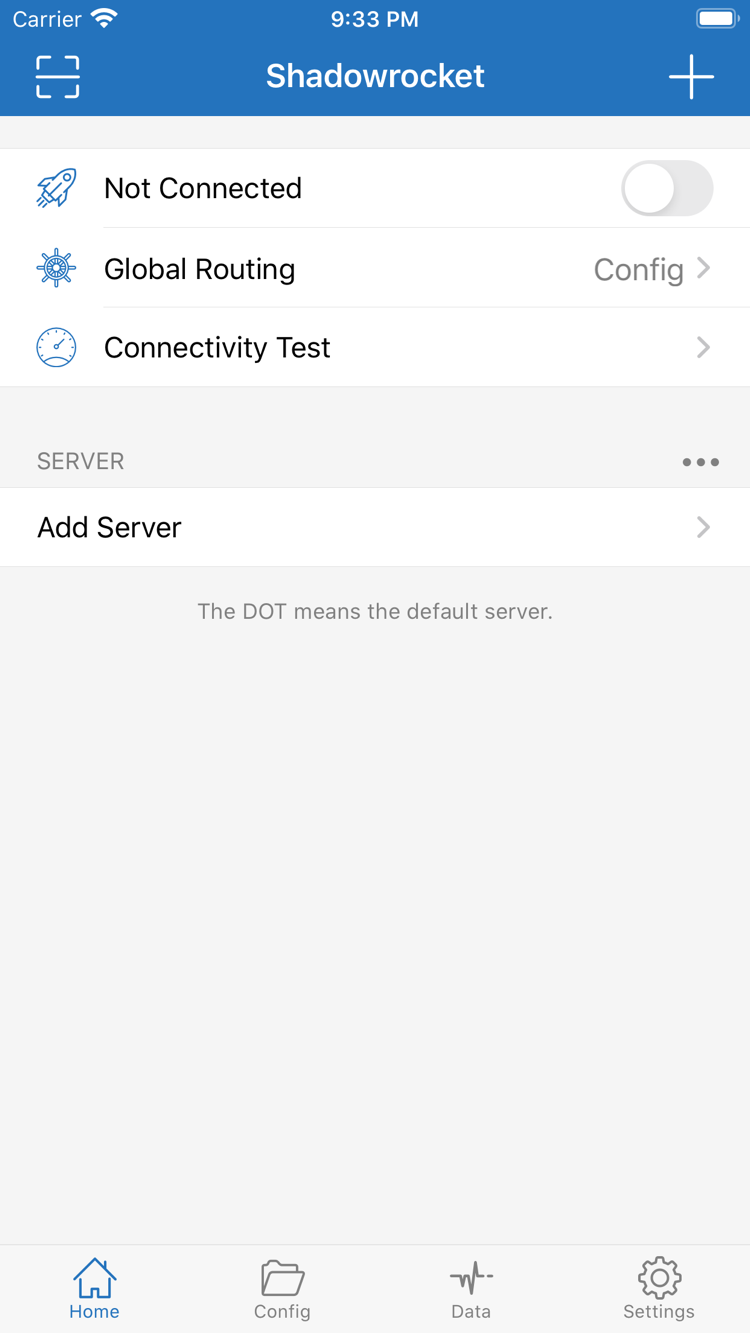
Return to Home and check which server is selected under SERVER, then confirm that Global Routing is still set to the mode you chose. If you plan to use Config, make sure the intended configuration is active. Once both are confirmed, turn on the connection switch at the top of the screen. Before connecting, Not Connected may appear at the top. The switch and status area are the first places to check whether a local connection has started.
On the first connection, the system may prompt you to add a VPN configuration. This permission allows Shadowrocket to create a system network connection; it is not a request to buy the app again or reset your server password. Review the prompt, confirm which app is requesting access, allow it, and complete device authentication as required. Return to Shadowrocket and wait for the status to change. If you previously declined, turn the switch on again to restart the required process.
Once connected, the system may show a VPN indicator. Its appearance and location vary by device, so don’t rely only on whether an indicator appears in the status bar. Instead, return to Home to check that the status remains stable, then test an actual request. An active connection switch means the local connection is running; it doesn’t confirm that remote server authentication, DNS resolution, or every destination site has been verified.
If the switch turns off immediately, note any system prompt or app error first. Then check for another active VPN configuration, device management restrictions, or an incomplete permission flow. Don’t rapidly toggle the switch or start by deleting all system network settings. Check the VPN configuration in the relevant VPN and device management settings. If you can’t find it or need to recreate it, follow the steps in Troubleshooting: VPN Permissions.
On iPad, the wider layout may show a list and details at the same time, but the steps are unchanged: select a server, check Global Routing, and connect. Shadowrocket working on another device doesn’t mean this device has the same subscription and configuration; check each item on the device you’re setting up. After granting permission, keep your current selections and move on to verification. Don’t change rules or switch servers at the same time.
Connectivity Test: Check Whether the Connection Works
Verify two things separately: whether the selected server responds, and whether actual requests take the expected route. Run Connectivity Test on Home and check the result for the selected entry. It can help identify a destination that doesn’t respond at all, but its method and target may differ from real-world browsing. A response does not mean every site, protocol, or rule is working correctly.
Keep the connection active and use a browser to visit a site you know and are authorized to access, then compare with another site that should be available. Make fresh requests if possible rather than relying on cached content. Note whether the page won’t load at all, some resources fail, or only one destination is affected. These details are more useful for troubleshooting than repeatedly saying “it won’t connect.”
If you’re using Config, also check the rule for the destination and the actual connection logs. Requests expected to use PROXY should match the relevant policy and selected server. Requests expected to use DIRECT shouldn’t be assumed to pass through the proxy just because the client is connected. Upload and download changes in Data can help show whether traffic is flowing, but background activity on the device also affects these readings. An increase in total traffic doesn’t prove that a specific domain matched a particular rule.
To compare modes, keep the server unchanged, switch temporarily between Proxy and Config, and retry the same request. If Proxy works but Config doesn’t, first check rule order, policy targets, and DNS-related settings. If both modes fail, check the server details and basic network first. Change one variable at a time, then restore your intended mode. This keeps the cause and effect clear instead of combining multiple changes.
The goal isn’t to reach a particular test score, but to be able to identify the selected server, the active mode, and the result of an actual request. Once confirmed, use Shadowrocket as needed. If the issue persists, keep these results and follow the checks below in order.
Settings: Check Common Failure Points
Troubleshoot from the earliest prerequisites onward. First turn off the connection and check that your Wi-Fi or cellular network can access the internet normally. Sign in to any network that requires a login. Then reconnect and reproduce the issue once. If the basic network is unavailable, changing rules, passwords, or test methods only adds variables; it won’t provide network access.
Empty Server List, Failed Test, or No Access After Connecting
If the server list is empty after a subscription update, check that your subscription link is complete, the service is still active, and the update didn’t report an error. A failed subscription update is different from a server connection failure. If entries are present but a test fails, check the selected server’s Host, Port, protocol, and authentication details. If the connection requires additional TLS settings, compare them with your existing details rather than disabling certificate verification to bypass an error.
If the status says connected but pages won’t load, first make sure you haven’t selected Direct by mistake, then confirm that the file and policies used by Config are present. If only one destination is affected, check its rules and DNS settings. If all destinations fail, check server authentication, the basic network, and VPN status. Narrow down the scope before making changes to avoid steps unrelated to the problem.
Test Method, On Demand, and Diagnostics
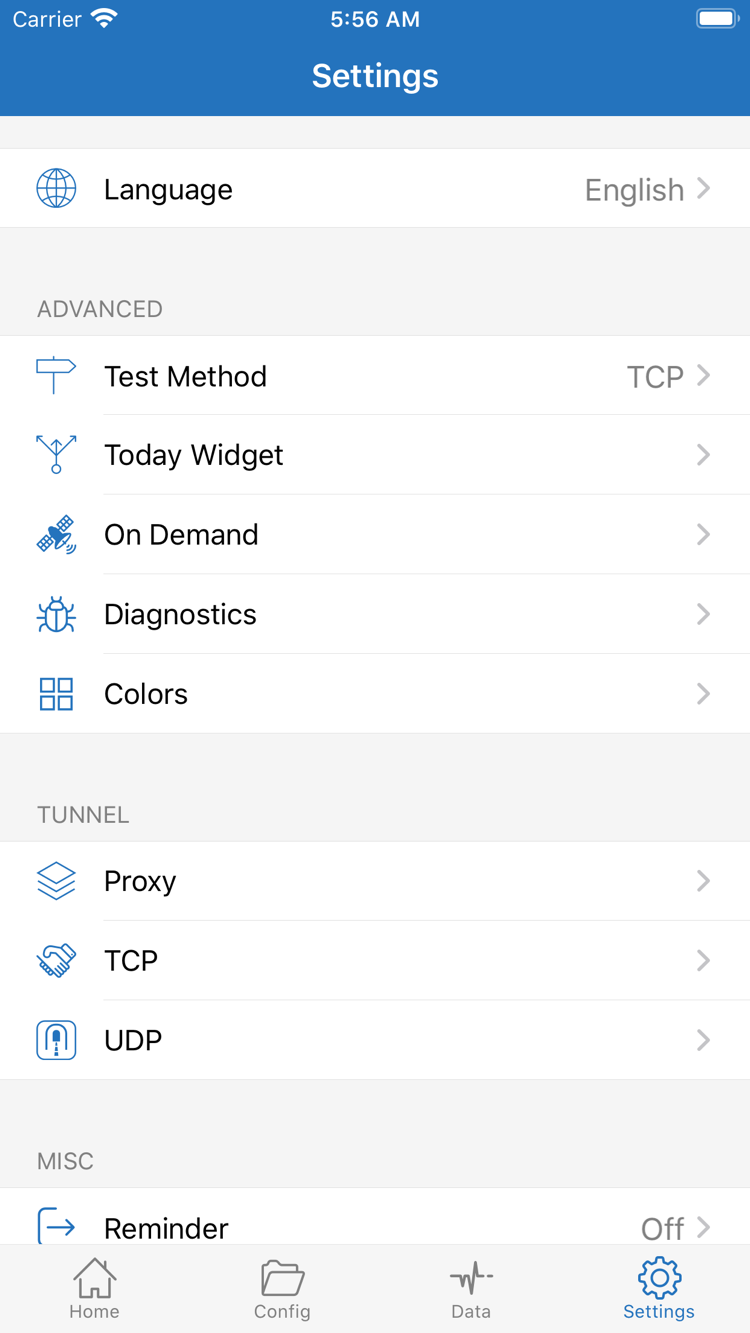
In Settings, you’ll find Test Method, On Demand, and Diagnostics. Test Method affects how test results should be interpreted. Before comparing servers or test results, check that the method and network conditions are the same. Don’t judge long-term availability by a single response time or mistake differences caused by different test methods for a sudden change in server behavior.
If the connection starts again after you turn it off manually, check whether On Demand conditions are active. When getting started, note the current setting. If needed, pause on-demand behavior while you verify a manual connection, then restore it afterward. Adjust Proxy, TCP, or UDP only when you understand the effect; you don’t need to test each setting to establish a basic connection. Language changes the interface display only and won’t fix server details.
Diagnostics can help collect clues. Note the error type, whether it occurred during authorization or connection, the selected mode, and the current network. Before sharing logs, conceal subscription addresses, authentication fields, and personal destinations. Don’t publish a complete configuration. If you’ve changed settings, return to a known state before testing again rather than piling changes onto an unknown setup.
If you still can’t identify the cause, continue with Troubleshooting: “First Launch and VPN Permissions,” “Importing Subscriptions and Servers,” and “Rules-Based Routing and Troubleshooting.” The basic workflow should now be clear: import your existing details, select a server, match Global Routing to the configuration, grant VPN permission, and verify with an actual request. Make any further changes one step at a time along this workflow.